Analysis, Deformation and Force Diagrams
Edit > Analysis Method (also in the Properties menu) selects Linear elastic (default) or P-Delta elastic for the project. This is saved, undoable and shared by manual, live and MCP analysis. Changing the method invalidates results. The Analyze tooltip, result snapshot, diagram windows, CSV and printable result reports identify the solved method; changing combinations preserves it.
P-Delta is available for 2D/3D frame-only models, including bilateral support springs, imposed rigid-support motions and supported planar moment releases. Coupled/uncoupled surfaces, truss members, released member translations and spatial rotational releases are rejected for this method. The PyNite procedure preloads each complete combination independently, then adds its geometric stiffness; nonlinear combinations are never made by superposing solved cases. Progress names the combination and geometric-stiffness/second-order phases. This adapter exposes no artificial convergence percentage or displacement tolerance: the locked engine uses an elastic preload and a geometric-stiffness solve for ordinary bilateral frames. Inclined/prescribed support constraints additionally update geometric stiffness until their free physical equations close, with a maximum of 30 updates and unchanged instability/equilibrium rejection. Failure, nonfinite values or nonpositive effective stiffness reject the snapshot. The usual worker cancellation and stale-reply checks apply throughout.
Use explicit intermediate joints along slender members and compare refinements to resolve member curvature. Loads retain their defined directions. This is elastic second-order frame analysis, not a general large-rotation solver, a buckling-load finder or material plasticity. Concrete frames use only the assigned elastic stiffness; no concrete cracking, reinforcement yielding or plastic slab effects are introduced. The equilibrium tab retains the usual force residual/tolerance checks but omits undeformed-geometry moment balance for P-Delta and explains why. PyNite's approximate second-order force recovery can leave force residuals above those strict numerical tolerances; these remain visible rather than being hidden by relaxed tolerances. Inspect them and refine the model. Numerical envelopes compare independently solved combinations, never combine their responses.
Plastic behaviour remains a separate pending workflow. The locked engine has
add_steel_section and analyze_pushover, requiring yield strength and plastic
section moduli for its steel interaction surface. A usable GUI must also define
preload/push patterns, load increments, displacement stop conditions, accepted-step
histories and capacity curves with benchmarks. Its public pushover uses first-order
preload and push steps; combining it with P-Delta is not supported. Plasticity acts
at member nodes and its interaction equation targets steel I sections. It is not
a reinforced-concrete constitutive model. Nonlinear plate/Quad behaviour is excluded
by upstream pushover limitations.
Concrete cracking, reinforcement layouts, yielding and slab plasticity need a
separate validated formulation/solver; concrete material presets alone do not
supply these capabilities.
- Use Pan (P) to drag the view, the mouse wheel to zoom, and Fit (F) to frame it.
- Analyze (F5) runs PyNite in an isolated worker process supervised off the GUI thread. The status bar shows a busy indicator and actual phases: checking the model/supports, building the model, solving combinations, checking stiffness, and collecting the snapshot. It does not invent a percentage or completion time. The stop icon cancels even during numerical solves or diagnostics and waits for worker cleanup; editing remains available while analysis runs. A rerun retains the last valid results until a new snapshot succeeds. Cancelled or failed reruns do not remove them; engineering edits still invalidate results normally, and stale worker replies are rejected. Unit-only changes can be made during a solve without changing the physical model. Closing while analysis runs cancels the worker first, then uses the normal unsaved-change prompt. Reactions and nodal displacements appear in Results. Choose a combination above the result table to update reactions, displacements, deformation, and factored load annotations without another analysis. Deformed overlays the displaced members. Its toolbar offers Auto (maximum displayed displacement is 15% of the model extent), True Scale (1x), and Custom amplification. The current factor and actual maximum sampled displacement are shown separately; scaling never changes analysis results. The maximum is sampled at 41 positions per member, not an exact extremum search. Straight preview (approx.) instead joins displaced member ends without sampling interior bending, reducing display work for large frames. Its labelled nodal maximum and Auto factor describe only those end translations. A loaded beam whose end positions stay fixed can therefore look undeformed in this approximate mode. Sampled curves restores the existing bending shape. Switching changes no model definitions, solved values, numerical probes or reports. The choice survives combination, unit and theme changes and is disabled while deformation/results are unavailable.
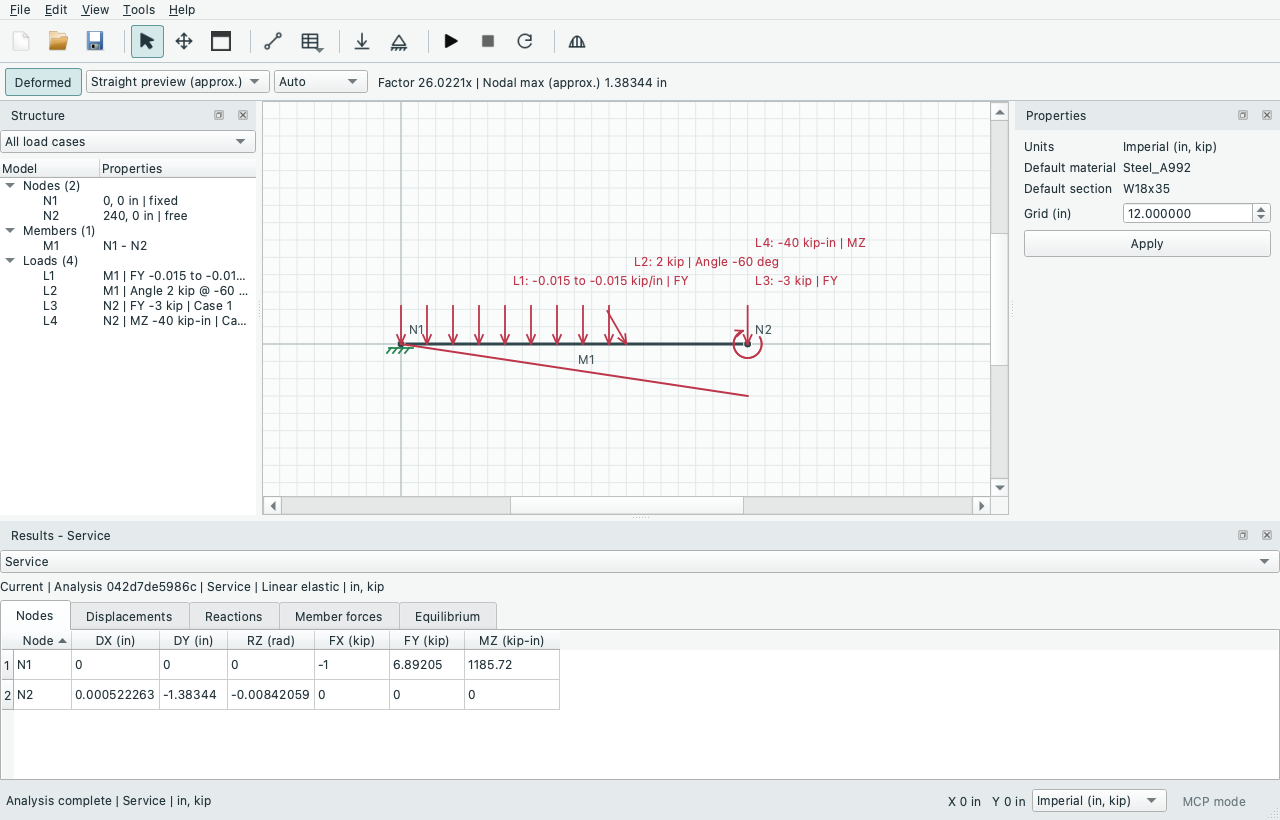
The straight red preview connects displaced ends; the original member remains visible as a reference. Switch back to Sampled curves to inspect bending. Fit (F) includes the visible deformed shape. Diagrams opens whole-structure axial, shear, and bending moment diagrams with one common amplitude scale for every member. Whole Structure also offers Default/Opposite side and Reverse display signs. Side changes placement only; sign reversal changes plotted values and labels the convention in the title (+ tension for reversed axial diagrams). These per-window controls survive unit/combination/theme changes but do not change Member Detail, numerical tables, CSV, analysis results, or saved models. Whole-structure labels use screen-space collision checks, prioritize member IDs, and add leader lines when moved away from their values. If no readable placement exists, a crowded label is omitted; zooming/resizing retries it. Labels stay within the plot and use the same placement logic in print images. Numerical tables and Member Detail remain the authoritative way to inspect every value; label placement never changes geometry or computed results. New diagram windows start with the standard convention. Member Detail provides axial force, local shear, bending moment, and transverse deflection plots for any member, sharing one distance axis. Supports and Loads toggles show/hide rigid restraints, spring symbols/stiffness, and combination-factored manual/generated loads on Whole Structure. Moment arrows respect the global clockwise/counterclockwise sign. Symbols share their geometry with the editor; spring/load labels avoid other text and symbols. Member Detail shows end support/spring and local-release context plus loads on that member and its end joints; longer load summaries are available by hovering. Joint loads in this context describe applied loads, not the member's share. Printed diagram choices inherit these toggles. Envelopes do not depict a single load state because their bounds can come from different combinations. In Member Detail, enter a distance or click a plot to inspect N, Fy, Mz, and dy. Left/Right side selects one-sided values at point-load jumps. Dashed cursors align all four plots. Member Results lists start/end values and solver minimum/ maximum values for each member in local axes and current units; each extrema column is independent, not a set of forces at one common station. Diagram windows have their own combination selector and retain the analyzed snapshot even when the editor changes. The inspector always edits original case values, not the factored values displayed after analysis. 2D Whole Structure also has independent Node/member IDs, End values and Sampled extrema checkboxes beside the existing Supports/Loads controls. IDs affects node/member names; load descriptions follow Loads. End values shows ordinates at member endpoints. Sampled extrema shows the minimum/maximum among plotted samples, which can occur at endpoints too. Turn off both numerical controls for a curve-only drawing. Coincident labels are deduplicated and dense labels still use collision handling. These are display settings: Member Detail, tables, CSV and solver results remain unchanged. Controls survive combination/unit/theme changes. Use result tables for solver extrema; sampled labels are not an independent exact-extremum search. Whole-structure 3D overlays and orthographic print projections now have matching independent ID/end-value/sampled-extrema choices. The 3D view retains its context Labels master.
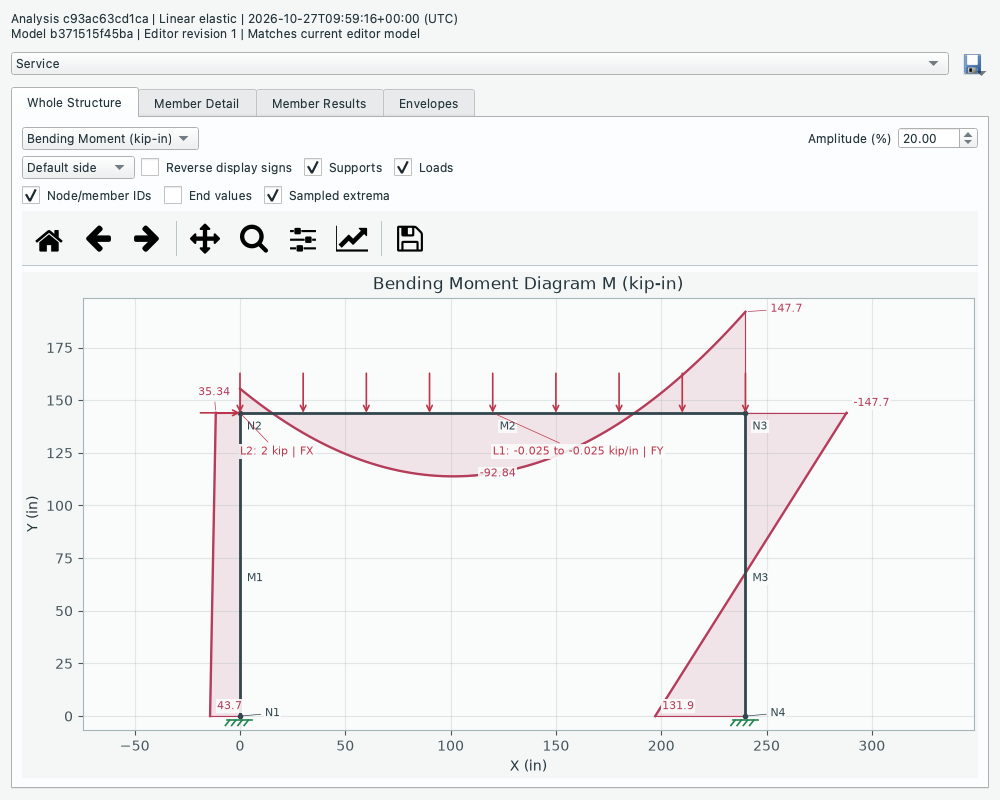
End values is off here; Sampled extrema remains on, so an endpoint that is also a plotted extremum can still have a numerical label.
Main-canvas member results
After analysis, the resizable Results dock provides a compact Canvas selector: Model, Deformation, Axial N, Shear Fy and Moment Mz in 2D; spatial frames offer N, Vy, Vz, T, My and Mz. Use the existing combination selector above it. These controls change the main view without opening a diagram window or rebuilding unapplied Properties inputs. Separate Member Detail/diagram windows retain their own analyzed snapshot and selections. Model hides force overlays; Deformation uses the existing amplification/shape toolbar. The legacy Deformed control can still add a deformed reference beside a force overlay.
Offset diagrams use local solver signs and the indicated positive local axis for placement, with one automatic geometric scale across members; Diagram scale multiplies that display amplitude. N is positive in compression. This local-axis convention is independent of Whole Structure's canonical placement and optional sign reversal in the separate 2D diagram window.
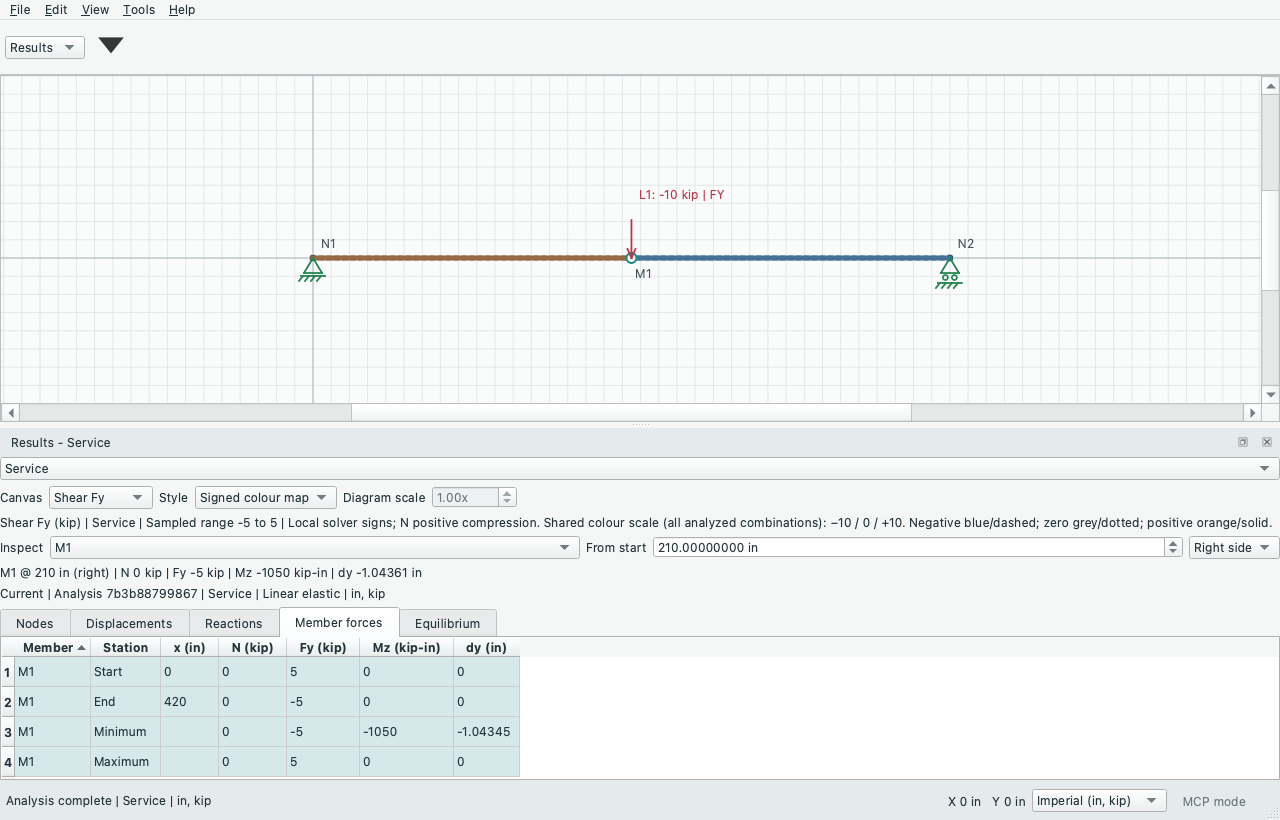
Signed colour map colours the undeformed member spans instead of offsetting them. Negative values are blue/dashed, positive values orange/solid and zero values grey/dotted. The numerical legend shows units, the current sampled range and a symmetric negative/zero/positive colour scale. That scale uses the largest absolute member sample over all analyzed combinations in the same snapshot; changing combination therefore preserves colour meaning. Diagram amplitude is disabled for colour maps. Sign crossings split at zero and coincident one-sided samples at load jumps do not create a false connecting span. The range describes samples, not a replacement for solver-extrema tables. Unit/theme changes retain the selection and canonical scale. These are member-force/moment maps, not slab stress contours. The existing 3D PNG export includes the rendered map/legend; printed reports retain their existing diagram options.
Select a member or click its undeformed reference geometry to inspect it. The From start field sets a precise distance along that member; Left side and Right side choose the one-sided solver value at load/segment boundaries. The dock lists signed local force/moment/displacement values with units, and a probe marks the undeformed station in 2D/3D. Spatial clicks project the picked reference point onto the member axis. Additive selection preserves the current probe; the member selector can choose a different inspected member. Probe stations remain at the same physical distance through combination/unit changes.
The existing analysis-status label identifies current, outdated and retained results. Engineering edits invalidate the main-canvas results and probe as usual; no stale field is presented as current. Canvas controls never analyze, change model definitions or replace the numerical result snapshot. Surface-only stress inspection remains a separate engineering milestone.
Static deformation animation
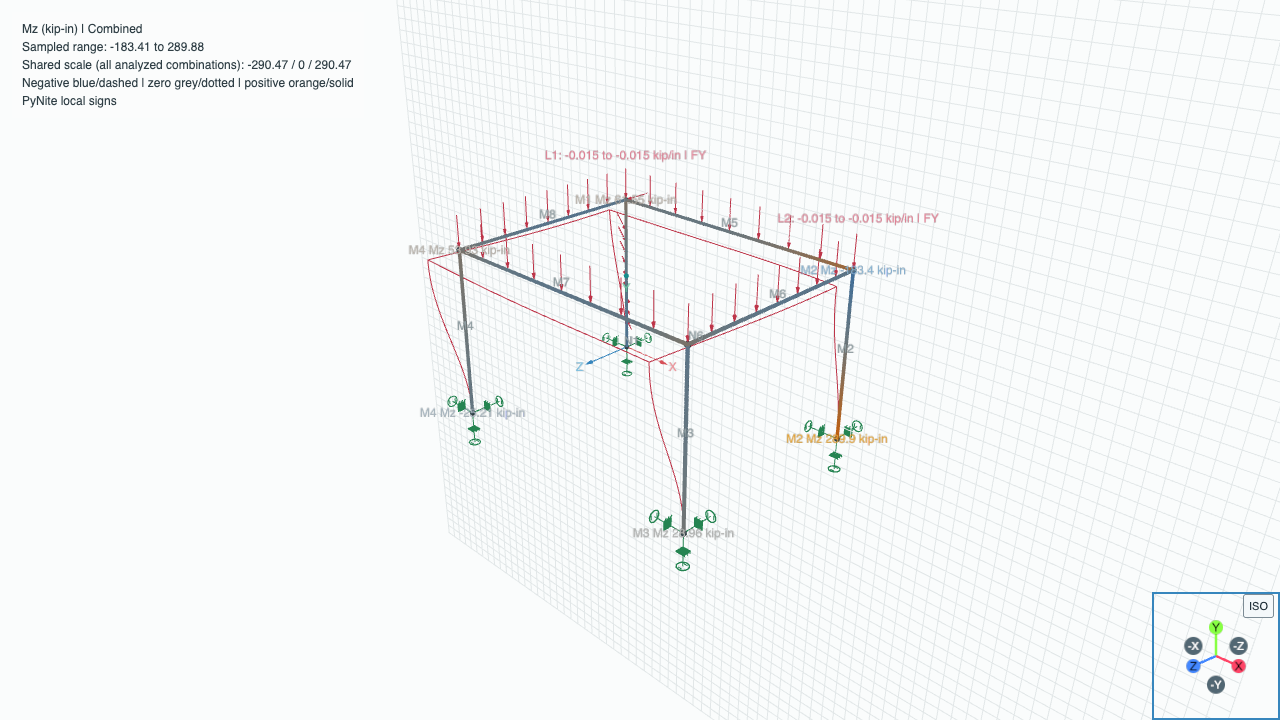
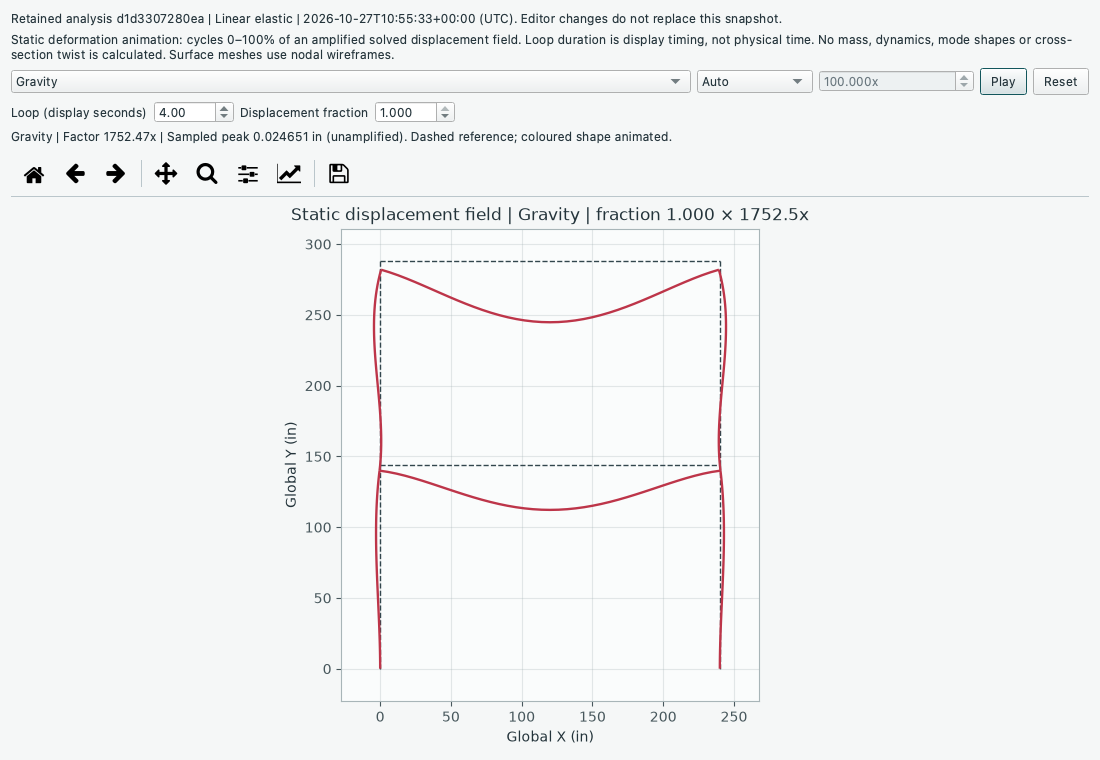
After solving, choose Tools > Animate Static Deformation… or the animation button in the Results toolbar group. The separate native window retains that analysis snapshot and method, even if the editor is changed or reanalyzed. The combination selector switches only among that snapshot's solved states. Member paths are sampled once per combination with the existing recovery rules; solved surfaces use nodal wireframes. No solver calls are made during playback.
Use Play/Pause, Reset, or set Displacement fraction from 0 to 1 to inspect a frame. A smooth loop cycles from the reference to the fully amplified shape and back. Loop (display seconds) is a display duration, not physical response time. This is not a dynamic/modal result, and it does not depict cross-section twisting. Dashed reference geometry stays fixed. Axis limits include the full displayed excursion and remain fixed during playback; standard plot pan/zoom and 3D rotation remain available. Auto scales peak motion to 15% of the largest model extent; True scale uses 1x and Custom uses the entered factor. The reported sampled/nodal peak is unamplified.
Changing combination or amplification pauses and resets the fraction. Changing duration pauses; pause/resume retains phase. Unit/theme changes preserve the fraction and cached canonical data. Hiding or closing the window, or changing MCP control mode, pauses playback. Model/result edits never change the retained field; the main animation action is disabled when current results are invalid.
The plot Save button pauses playback before opening the file dialog, freezing the frame and its metadata together. It exports the current PNG/SVG frame with snapshot identity, method, units, combination, amplification and fraction metadata. The visible plot title records the fraction and amplification; its footer identifies the analysis. This exports a still frame, not a movie. Playback and export do not edit model definitions or numerical results.
Source: GUIDE.md. This manual follows the current repository; the published rc1 wheel has a smaller feature set.