Drawing and Selection
- Choose Member (M), then click two points. Coordinates snap to the project grid or an existing node. Escape or right-click cancels an unfinished member.
- Choose Select (V) and click a node or member, or select it in the structure tree. Edit properties in the inspector and press Apply.
- In Select mode, Ctrl/Shift-click toggles nodes/members on the canvas. Drag an empty area to box-select nodes and any members that cross the rectangle; Ctrl/Shift adds that box to the current selection. Escape/right-click cancels the box without changing the selection. A plain empty click clears it. The tree supports Ctrl-click toggles and Shift-click ranges, including manual loads. Edit > Select All (Ctrl+A) selects all geometry and visible manual loads; generated self-weight remains read-only. Selected geometry and load arrows are highlighted, and selections stay synchronized with the tree. Multiple items show a bulk inspector: assign member materials/sections and end hinges, node supports/custom restraints, or load cases and a signed magnitude multiplier. The multiplier scales both distributed-load intensities, preserving fractions, angles, and directions. Keep existing and partially checked boxes leave properties unchanged; checked sets on and unchecked sets off. Choose custom before editing restraint boxes; unmodified restraints retain each node's effective previous support. Apply validates all selected edits in one transaction; Delete Selection removes selected items and their dependents in one undo step. Selection alone never invalidates results; actual bulk edits do. Single-node dragging and single-entity commands still require one target. Hiding a load case removes its loads from the selection without clearing selected geometry. Opening another project clears the selection. Named groups and levels (development after RC2)
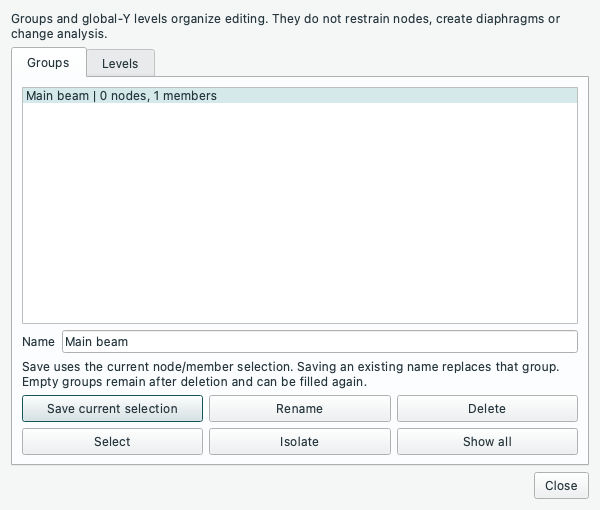
Open Edit > Groups and Levels. On Groups, select nodes/members in the model, enter a name, then Save current selection. Saving an existing name replaces its contents; Rename and Delete are undoable. Groups store explicit node/member IDs. Splitting/subdividing a grouped member replaces its membership with all segments. Geometry deletion removes obsolete references, leaving an empty group available for reuse. Creating a 3D copy preserves groups and levels.
Select restores the saved selection. Isolate shows its members and nodes, including member endpoints as visible context, and hides other geometry/loads in the canvas and tree. The window title identifies isolation; use View > Show All Geometry or the dialog's Show all to restore visibility. Entering drawing mode also clears isolation so new geometry cannot be created invisibly. Surface meshes are hidden during frame-group isolation. Isolation does not remove any entities from analysis or from numerical result tables, exports or retained result windows. Hidden members connected to a moved joint still move with it.
On Levels, save named global Y elevations in the current display units. Select at level selects coincident nodes and members whose two ends are at that elevation, without selecting vertical columns that merely cross it. In 3D, Use as XZ plane sets the drawing plane/offset to that level. Optional Snap drawing and node drags to named levels chooses the nearest elevation within 20% of grid spacing before grid snapping; ties choose the lower level. Existing-node snaps take precedence, and the fixed coordinate of a 3D work plane remains fixed. Typed coordinates are explicit and are not snapped. Changing a level does not move existing nodes. Snapping is off by default.
Groups, elevations and the snap flag save with the project, survive undo/redo and display-unit changes, and preserve a valid analysis snapshot. They are editing metadata: they add no diaphragm, rigid-floor assumption, restraint, load or solver constraint. MCP reads expose this metadata but do not edit it; MCP geometry deletions prune group references atomically.
Source: GUIDE.md. This manual follows the current repository; the published rc1 wheel has a smaller feature set.