3D Frames and Trusses
Use File > New 3D Frame for a new spatial project. File > Examples > 3D Frames includes 3D Cantilever - Biaxial Bending and Torsion and 3D Space Frame - Gravity and Wind. Examples > Trusses > 3D Truss Tripod - Joint Load provides a pin-jointed spatial benchmark. Examples > Slabs contains the single-floor and three-storey coupled slab examples. The existing New command still creates a 2D project. Dimensions never change implicitly. Use File > Create 3D Copy to convert an existing 2D definition into an independent, unsaved 3D window; the original geometry, undo history, file and result snapshot remain untouched. Save the copy to its own file and analyze it again. Closing the source window does not close the copy.
- Conversion places the original XY geometry at the entered global Z offset. Preserve planar constraints (default) explicitly fixes DZ/RX/RY at every node and preserves the original global DX/DY/RZ restraints and springs. These are real, editable custom supports, not hidden solver stabilization, and retain the original in-plane linear response.
- Use spatial supports removes the planar adapter constraints: free nodes have six free directions, pins restrain XYZ translations, fixed supports restrain all six directions, rollers remain global Y-only, and custom supports keep only their explicitly defined in-plane restraints/springs. Review supports before analysis; a planar truss or Y-only-supported frame may be unstable out of plane. No missing stiffness is silently restrained.
- IDs, assignments, material/section provenance, units, grid, cases/combinations, load fractions/intensities and self-weight settings are copied. Angled and member-local planar forces become global spatial azimuth/elevation forces with the same actual XY components, including on reversed/vertical members. Generated self-weight is regenerated, not duplicated; member roll starts at zero.
-
Frames, including local RZ hinges and DX/DY end releases, and axial-only trusses can be converted. Conversion preserves every connection release. Redundant planar truss moment flags become the spatial axial-only type. Conversion copies definitions, not analytical results, and does not infer new joints at crossings.
-
The central viewport uses bundled Three.js and Qt WebEngine, offline. Drag to orbit in Select mode, use Pan for translation, and wheel to zoom. Fit and the isometric/front/top/right/back/bottom/left camera presets reframe the model.
- The lower-right orientation gizmo rotates with the camera. Click a signed axis
to animate to that view while preserving the current zoom and orbit center;
ISO restores the isometric fitted view. The native view selector follows
gizmo choices and shows Orbit during free navigation. With the gizmo focused,
X/Y/Z select positive axes, Shift+X/Y/Z select negative axes, and Home restores
isometric. This uses the bundled Three.js r180
ViewHelper, under its MIT license. - In Member mode choose an XY, XZ or YZ work plane and its perpendicular offset. Two clicks draw a snapped member. Existing picked nodes take priority over the work plane, allowing connections between different planes. Escape cancels a pending member. Add Node opens exact XYZ entry; Model Tables can define complete node/member connectivity numerically. All engineering edits support undo/redo.
- In Select mode, enable Move nodes, choose XY, XZ or YZ, then drag a node sphere. Only the two in-plane coordinates move; the perpendicular coordinate stays at that node's original value, independently of the drawing offset. The preview grid temporarily follows this plane through the node. In-plane coordinates snap to the canonical model grid in every unit preset. Clicks still select; dragging empty space still orbits. Box select takes priority and the two explicit toggles are mutually exclusive; Shift-drag still starts a box. Escape, lost pointer capture, camera/viewport changes or an incoming model redraw cancel the preview without changing the project. An edge-on work plane shows feedback instead of guessing coordinates; choose its matching front/top/right view. Preview hides analytical overlays, loads and local-axis arrows until release or cancellation. Release validates one atomic move and one undo command; duplicate node positions and zero-length members are rejected without dropping results. Stale revisions/coordinates, disabled tools and out-of-plane/off-grid requests are rejected. A successful move selects the node and invalidates results. Supports, IDs, assignments, roll and manual load fractions are retained; self-weight is regenerated using the new lengths. Moving does not merge nodes or connect crossings; use the explicit topology commands and reanalyze.
- Select a member and choose Split... in its inspector or Edit > Split Selected Member. Enter a fraction measured from its start. The first segment retains the original member ID; new segments preserve material, section and roll. Existing coincident joints retain their supports, springs and nodal loads. Point loads keep their physical XYZ stations and reference directions; a 3D point force/moment at a cut remains a member-end load on the preceding segment, preserving its ID and rolled local axes instead of resolving it into nodal loads. Partial uniform/varying distributed loads are clipped and interpolated onto the segments; new pieces get new load IDs and retain cases/angles. Self-weight is regenerated from segment lengths without double counting.
- Edit > Connect Intersections explicitly connects actual XYZ crossings, T-junctions and existing interior nodes by creating shared endpoints and segments. Skew lines and crossings seen only in projection do not connect. Collinear overlaps are rejected before any changes. Both topology commands are atomic, undo in one step and invalidate results; repeat analysis after editing. Drawing or analysis never silently connects a crossing, and solver-only physical-member segmentation remains outside this workflow.
- Edit > Subdivide Selected Members divides each selected frame into 2–100 equal segments. It uses the same load/roll-preserving split rules, retains coincident nodes and applies the entire selection as one undoable edit. Axial-only trusses are rejected because subdivision introduces unbraced joints.
- In Select mode, enable Box select or hold Shift while dragging a rectangle. Left-to-right selects enclosed nodes and complete members; right-to-left also selects members crossing the box. Ctrl/Command adds to the current selection; an empty replacement box clears it. Escape cancels without changing selection. Selection uses projected undeformed nodes and straight member centerlines, including geometry behind other members, not visible diagram/deformation curves or load arrows. Geometry behind the camera/near-far clip is excluded. Ordinary clicks still pick individual entities; orbit resumes when box mode is off.
- With multiple entities selected, the inspector offers explicit Keep existing choices. Assign member materials/sections and optional roll, node support presets or custom global restraints, all six support-spring stiffnesses, and load cases or a signed magnitude multiplier. A custom support starts from each node's current effective restraints; untouched checkboxes retain those values. Scaling changes both intensities of varying loads and preserves their angles/stations. All chosen changes are validated together and applied as one undoable edit. Invalid combinations, such as a spring on a rigidly restrained DOF, reject the entire batch. Geometry and unselected properties remain unchanged.
- XYZ coordinates, grid and plane offset use the selected project length units. SI/imperial selection preserves the physical model and valid results. Y is vertical; automatic self-weight acts in global -Y using full 3D member length.
- Nodes have DX, DY, DZ, RX, RY, RZ global degrees of freedom. Fixed restrains all six; Pin restrains XYZ translations only; Roller restrains global Y only. Custom exposes all six restraints. Positive bilateral springs are available on each DOF; a spring and rigid restraint on the same DOF are rejected.
- Members use per-member materials/sections and a roll angle about their local x axis. Local x runs from start to end; local y/z follow PyNite's transformation including roll. The inspector gives local-axis vectors in global XYZ, and the Local axes toggle displays the selected member's triad. A/Iy/Iz/J remain section properties; changing roll rotates the section without swapping stored values.
- Loads accept global FX/FY/FZ/MX/MY/MZ and member-local Fx/Fy/Fz/Mx/My/Mz. Load dialogs label the reference explicitly. In Model Tables, uppercase means global and mixed case means local. Nodal loads use global directions only. Uniform/varying distributed forces support partial spans; magnitudes are force per full member length, not projected length. Distributed moments are excluded.
- Global angle enters nodal/member point forces or distributed member forces by signed magnitude, azimuth and elevation. Azimuth is measured in global XZ from +X toward +Z (0 = +X, 90 = +Z); elevation tilts toward global +Y (+90 = upward, -90 = downward). The preview lists global FX/FY/FZ, including both end intensities for varying distributions. Negative magnitudes reverse the chosen direction. One saved load retains its angles; resolution into solver components is automatic. Angles are also editable in Model Tables and included in model-definition reports. Angular moments and local-axis azimuth/elevation input are not offered.
- Background analysis solves all six DOFs without planar stabilizing restraints. Insufficient restraints report affected global directions. Named cases, combination factors, progress/cancellation and stale-result rejection are shared with the 2D workflow. Reactions and nodal motions are global; rotations are radians.
- Choose Type = truss in the spatial member inspector, bulk inspector or Model
Tables for a bilateral axial-only element. PyNite releases both bending planes
and torsion at one end; the element transfers axial force only. E and A determine
stiffness; Iy/Iz/J and roll do not add bending/torsion stiffness. Truss members
use thinner spring/axial-colored lines and a
[truss]label. This is not a tension-only or compression-only element. Manual member loads are rejected; apply forces at braced/restraint-compatible joints. Conversion to truss never silently removes existing member loads. Self-weight is lumped half to each end joint; frame self-weight remains distributed. At a truss-only joint, unsprung/unrestrained rotations are inactive and reported as n/a. Numerical elimination of these unused rotations cannot restrain translations or transfer moments through trusses. Explicit rotational supports and springs can react joint moments; moments on an inactive rotation are rejected. A joint shared with a frame retains its frame rotation DOFs. Shear, torsion and bending truss results are zero; deformed truss lines interpolate joint translations linearly, without a bending curve. Splitting a truss introduces a joint that must be appropriately braced; an unbraced intermediate joint is a real mechanism. - Frame end releases are staged in Properties, Model Tables or bulk editing:
choose start/end local DX (axial), DY/DZ (shear), RX (torsion), RY and RZ (bending), then Apply. They are
connection properties, independent of global node restraints and member roll.
Use Linear elastic with no surfaces. Only one end may release RX; releasing
either end already disconnects torsion transfer. Clear manual flags before
changing to truss. DX cannot be released at both ends. Each DY/RZ or DZ/RY
bending plane accepts at most two releases and cannot release both translations.
Released P-Delta and released
frame/surface coupling are rejected. With IDs visible, endpoint labels list
the released axes; reports include both end definitions.
At a released joint an unused rotation may be oblique to all global axes.
Affected global nodal components are n/a, rather than zero. The inspector
separately shows recovered local RY/RZ member-end slopes for solved released
members; these can be nonzero even when the shared joint angle is undefined.
A completely free uniform torsional angle has no unique physical value.
Try 3D Frames > 3D Inclined Beam - Rotational End Releases for a rolled, oblique example with
zero end bending moments, nonzero beam-end slopes and signed combinations.
3D Frames > 3D Fixed-Guided Beam - Translational End Releases releases end-j
DX/DY/DZ, retaining its rotational connection. Both joints are fixed, but the
member end slides. Properties and member reports show recovered local translations;
MCP member reads include a
released_end_translationstable for members on that page. The deformed member line follows the member side of the connection. Joint translations must still have support/spring or incident-member stiffness: a free disconnected translation is rejected, even if it is unloaded. No translational coordinate gauges or automatic restraints are added.
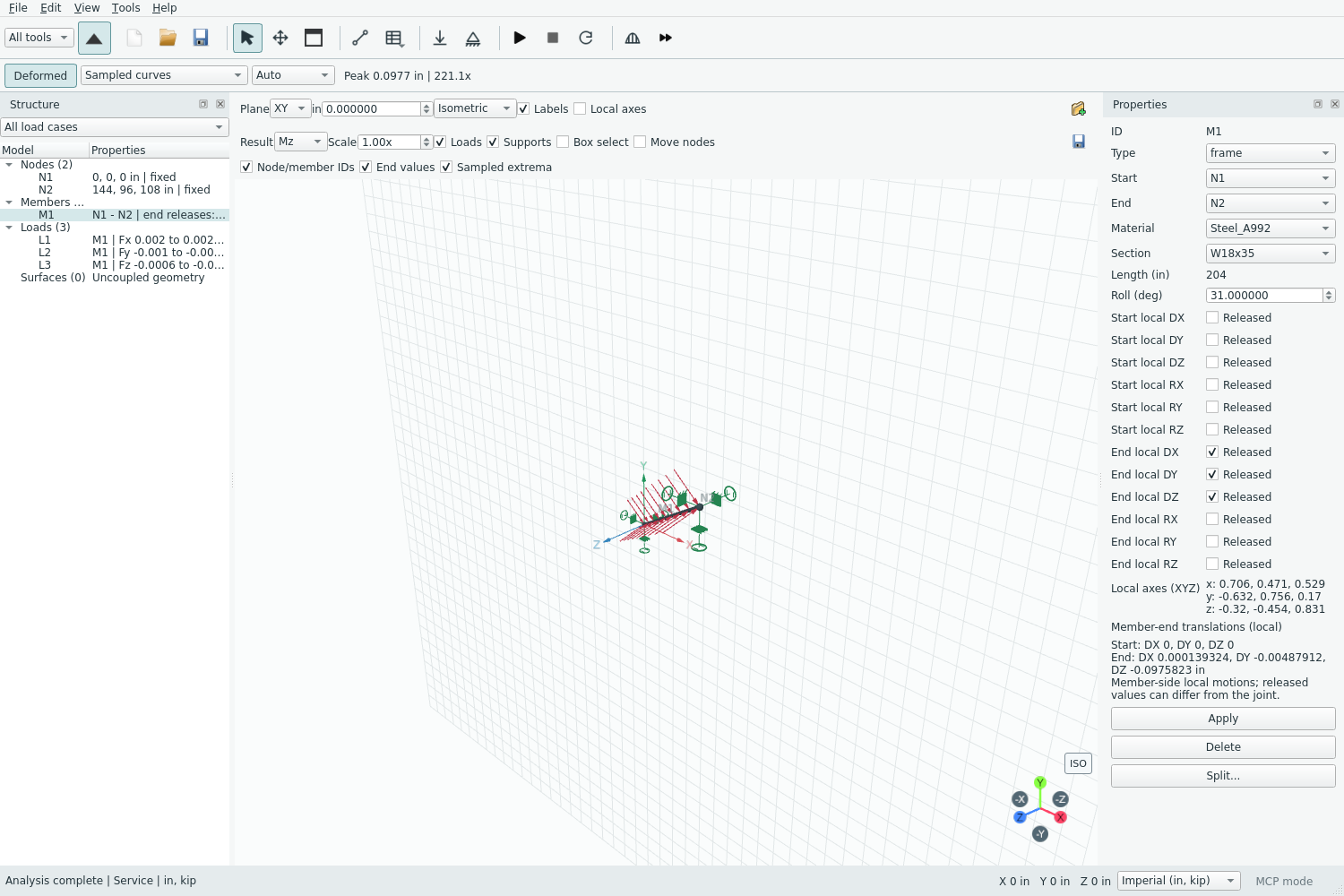
The native Linux standalone check shows zero joint translations while the released member end has nonzero local DX/DY/DZ. Deformation is amplified for display.
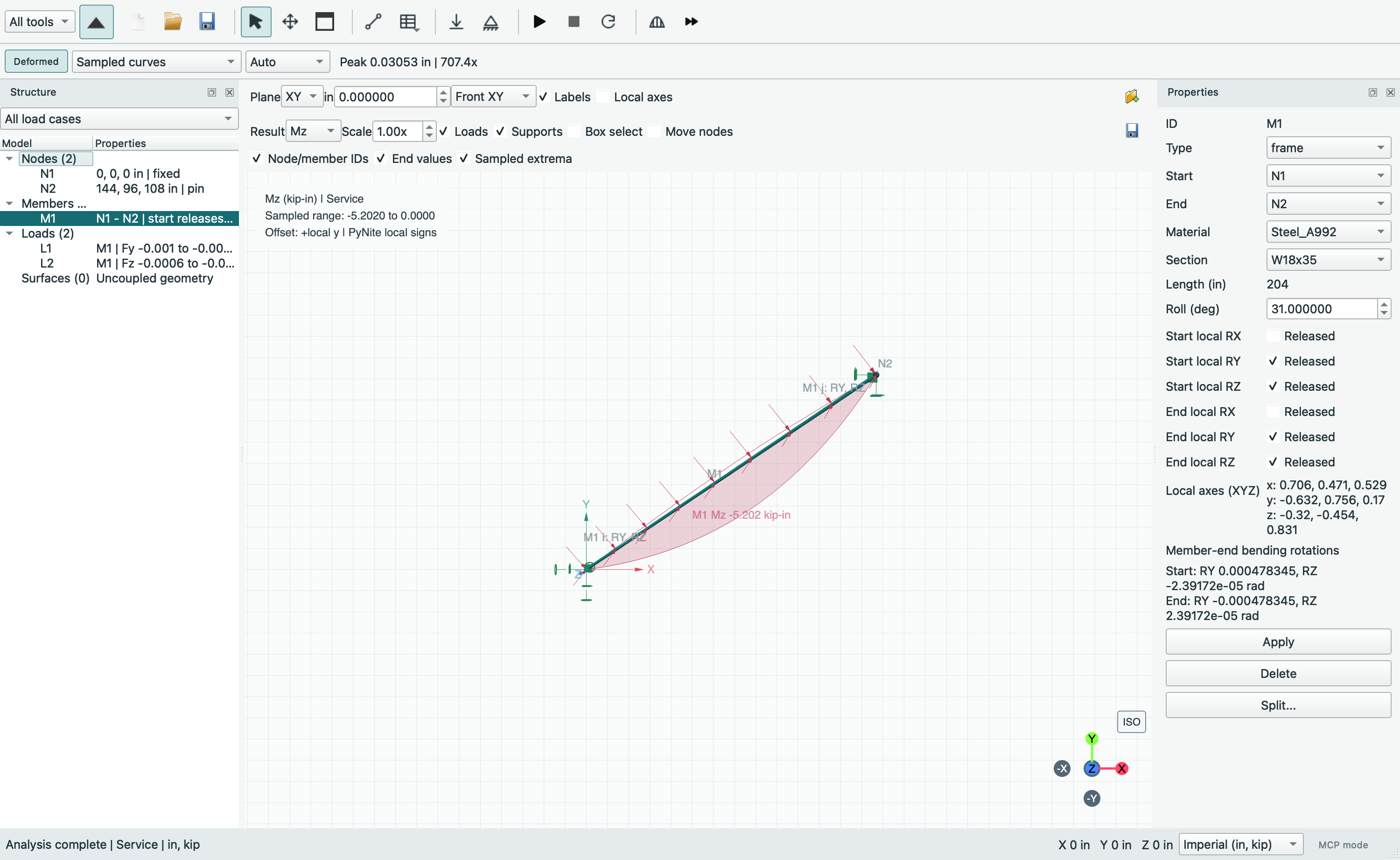
The installed development app shows the solved front projection. The shared free joint rotations are undefined; the inspector reports the beam-side slopes.
- The viewport Supports toggle controls global rigid-restraint and bilateral spring symbols without changing the model or results. Each constrained DOF has its own symbol: translational rigid stems end at grounded pads, rotational rigid restraints use stopped rings, translational springs use coils and rotational springs use spirals. Rotation symbols sit farther along the same negative global axis to distinguish them from translation symbols. Symbol sizes are illustrative, not physical dimensions or stiffness magnitudes. Rigid restraints use the support color; springs use the spring/axial color in both themes. Hover a symbol to highlight its DOF in a six-row global support tooltip, or hover a node to inspect all DX/DY/DZ/RX/RY/RZ states. Spring stiffnesses use the selected force/length or moment/radian units. Clicking a symbol selects its node for editing. Hover details remain available on nodes when symbols or labels are hidden. Tooltips disappear during navigation/drawing and are not part of PNG exports; visible support symbols are included in the exported viewport image.
- Deformed shows all three translational components, sampled in rolled local axes and transformed to global XYZ. Auto uses 15% of the largest coordinate extent; True Scale uses 1x; Custom uses the chosen factor. Peak is the actual sampled translational displacement magnitude, not an exact optimization or twist angle. Fit includes displayed deformed paths. Torsional rotation is reported numerically; this line-member viewport does not render cross-section twisting. Straight preview (approx.) joins globally displaced member ends and omits interior bending. Its peak and Auto factor use nodal translations only. It avoids member span sampling when no force/moment overlay is active; an active diagram retains its full sampled numerical ordinates. Surface meshes retain their existing nodal deformation display. Return to Sampled curves for member bending shapes; probes, tables, reports and exports retain solver results.
- Diagrams opens a retained member snapshot with N, Vy, Vz, T, My, Mz, dy and dz. Curves use local solver signs, with N positive in compression, and sample both sides of point-load boundaries. Combination and member selectors are independent of subsequent model edits. Enter Distance or click a member plot to inspect all eight values at that station. Left side / Right side queries the solver immediately before/after interior load boundaries, rather than interpolating screen curves. End stations query the member endpoint. Units change without changing the physical station; changing members resets the station to zero. CSV includes all six global node responses and member end values/extrema. Printable numerical reports split wide results into readable tables.
- The retained diagram window's Combination Envelopes tab compares checked analyzed combinations independently of the single-combination selector. Node bounds cover all six global motions and reactions; member summaries use exact solver extrema of N, Vy, Vz, T, My, Mz, dy and dz over each entire member. Member Curves shows sampled lower/upper bounds and solver-based one-sided station values with their governing combinations. First checked combination wins ties. These are independent bounds, not one simultaneous load state. Export envelope summaries as CSV or select them in Print Results; both retain snapshot identity, selected combination factors and project units. Whole-structure report diagrams are single-combination views; the envelope sections remain numerical summaries, not ribbons depicting one governing state.
- The viewport Result selector overlays N, Vy, Vz, T, My or Mz across the entire undeformed frame for the currently selected result combination. Scale multiplies automatic diagram height: 1x maps the largest absolute sampled value to 15% of the largest model coordinate extent (at least one grid spacing). This is a display scale, not a change to forces or stiffness. End values and Sampled extrema independently control ordinate labels. An extremum can be at a member end; turn off both to hide all ordinate labels. Node/member IDs controls names on the model and ordinate labels. The existing Labels switch remains the master for context text (including model IDs, load descriptions and local-axis labels); numerical diagram labels use their own controls. Loads and Supports independently control their geometry. Hiding IDs does not remove load descriptions or the quantity/unit/sign legend. Fit includes diagram extents, and deformed shape can be displayed alongside them. Changing geometry clears stale result overlays.
- Diagram ordinates follow PyNite's local solver signs, with N positive in compression. Positive values offset toward local y for N, Vy, T and Mz, or local z for Vz and My, including member roll. The N/T offset direction is a plotting convention, not their force/moment vector direction. Point-load discontinuities retain both one-sided values. Legend ranges and value labels are sampled, not exact optimized extrema; use the member detail/CSV for solver-reported extrema. Units follow the current SI/imperial display choice.
- The save icon on the viewport result toolbar exports the current camera view as PNG, including visible geometry, diagram labels, signed-axis gizmo and the combination/unit/sign legend. The native controls and editing sidebars are excluded. For printable diagrams use File > Export Results > Print Results or the retained diagram window's export menu. Select N, Vy, Vz, T, My and/or Mz and check Isometric, Front XY, Top XZ and/or Right YZ views. Each component/view pair gets a page with snapshot ID, combination and units. Preview offers native printing/save-to-PDF. These are deterministic orthographic diagrams from the analyzed snapshot, not captures of the live orbit camera; they work without WebGL and always use a light, print-friendly palette. Report options also offer Diagram node/member IDs, Diagram end values and Diagram sampled extrema, alongside supports and factored loads. When printing from the main 3D view, these initialize from the visible choices; changing report checkboxes does not change the viewport. Direct report calls default to all labels on. Each report page records which label groups are shown. These choices affect annotations only; sampled ranges, shared scale, rolled local axes and numerical result tables stay intact.
Diagram amplitude maps the largest absolute sampled ordinate across the whole model to the chosen percent of model extent (at least one grid spacing). Side/sign controls change only printed geometry and display labels, not solver tables, CSV or envelope bounds. Supports/springs and factored combination loads have separate visibility controls. Triangles identify rigid supports, squares bilateral springs, and labels identify global DOFs. Moment double arrows follow their global/rolled axes; normal-to-view forces/moments use a circle toward the viewer or cross away. Projected members and offsets can overlap or be edge-on; choose additional views. Dense labels are omitted instead of overlapped; use numerical model/results tables for exact definitions and solver extrema.
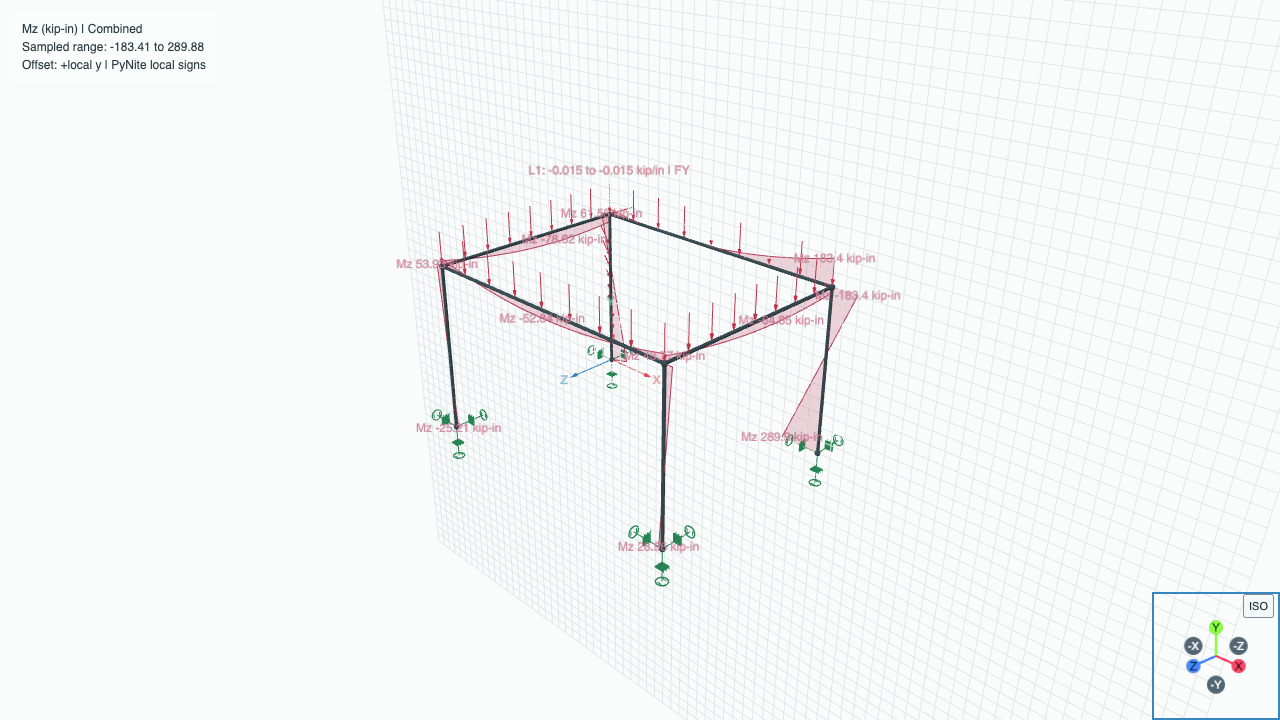
The offline viewport retains the local-axis, combination and unit legend when labels are reduced. Its curves and force values are unchanged.
Current spatial scope includes linear elastic frames/trusses and opt-in experimental rectangular Quad slabs, plus P-Delta elastic analysis of frame-only models. Spatial translational/rotational releases are limited to linear frame-only models. General curved-shell analysis, solids and material plasticity are not implemented. Coupled slabs use solver-only frame segmentation at mesh nodes; user-defined frame intersections still require explicit shared endpoints. Multi-selection supports bulk assignments and deletion; use Model Tables for coordinated geometry editing. Geometry requires explicit shared endpoints; overlaps, interior nodes, crossings without a shared joint and disconnected groups are rejected before analysis. Skew lines are not mistaken for intersecting members. Dedicated support/spring symbols and hover details show global DOFs and selected-unit stiffnesses; the inspector and model tables provide exact editing controls.
Qt WebEngine is included with the full PySide6 dependency. Three.js 0.180.0 and
OrbitControls are bundled unmodified under their MIT license in
src/pynitegui/qt/viewport3d/vendor/; no CDN is used. The Chromium sandbox is not
disabled by the application. On Linux Conda hosts with a mismatched Brotli common
library, a narrowly scoped loader retries the system library only for the known
missing-symbol import failure. Other import failures are displayed explicitly;
numeric model editing remains available but rendering is unavailable.
Source: GUIDE.md. This manual follows the current repository; the published rc1 wheel has a smaller feature set.