Help, Shortcuts and Workspace Layout
The main menus follow File, Edit, View, Tools, Help. Help > Documentation (or F1) opens the Brecon website in your default browser. Getting Started opens its first-model walkthrough. These links open only when requested; the editor does not require an online connection. If your system cannot launch the browser, a dialog provides the address to open manually.
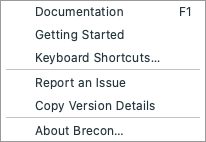
Help commands in the current checkout. Native menu placement and shortcut symbols vary by platform; the screenshots below use example projects and disposable settings.
Help > Keyboard Shortcuts opens a searchable native reference built from the current editor commands. It displays the platform's shortcut notation, includes both redo bindings, and keeps Undo/Redo labels stable after edits. Single-letter tools apply when the model view has focus; Escape cancels the current gesture. The reference is available offline.
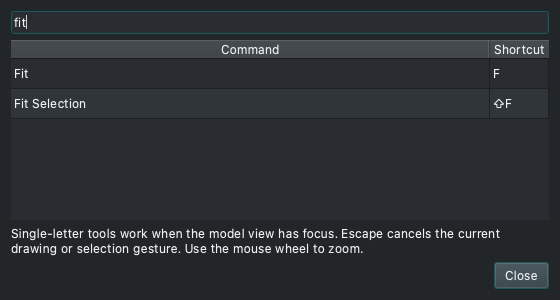
Search for fit to compare whole-model F and selection-only Shift+F.
The reference follows the application's light or dark appearance.
Help > About Brecon shows the installed application version and license, with buttons for documentation, the repository and issue reports. About uses the repository link rather than personal author credits. On macOS, the native menu may place About in the application menu. Copy Version Details, available in Help and About, copies the application, Python, Qt, PySide6, PyNite, NumPy/SciPy and operating-system versions for a bug report. It does not submit an issue; Report an Issue opens the project's issue page for you to review and write a report. About and Shortcuts windows can stay beside the editor and reuse the same window when reopened.
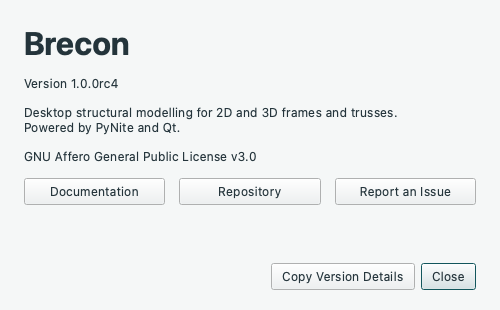
About links directly to the repository. Copy Version Details prepares text for your report; it does not send anything.
The compact Workspace selector starts at All tools, preserving the full command layout. Choose Model to show editing/loading commands and the Structure/Properties docks, or Results to show result/deformation commands and the resizable Results dock. File, view and analysis commands remain in both focused layouts. The same choices are available under View > Workspace. Results can be opened before solving; its existing empty/outdated state still applies. Solving in All tools or Model preserves the Results dock's current visibility: a hidden dock stays hidden, while an open dock updates in place. Open it explicitly through View > Results, or choose the Results workspace. Solving in that workspace shows Results. Workspace choice does not change the analysis lifecycle or automatically switch profiles.
The adjacent checked button, also View > Workspace > Show Command Toolbars, collapses or restores the command toolbars. The workspace selector remains accessible. Collapse state follows workspace changes, so you can keep more room for the model and restore the chosen profile's commands when needed.
Switching changes visibility only: it does not rebuild Properties, apply drafts, change the active select/member/pan tool, edit the model, alter selection/undo, fit the view or replace retained result windows. Planar zoom/centre are retained through dock resizing; the spatial renderer receives no camera/scene request. Existing 3D result controls and separate diagram windows remain available; the workspaces do not add new result types. Profiles and collapse state are per-window presentation choices, not saved model definitions or persistent preferences.
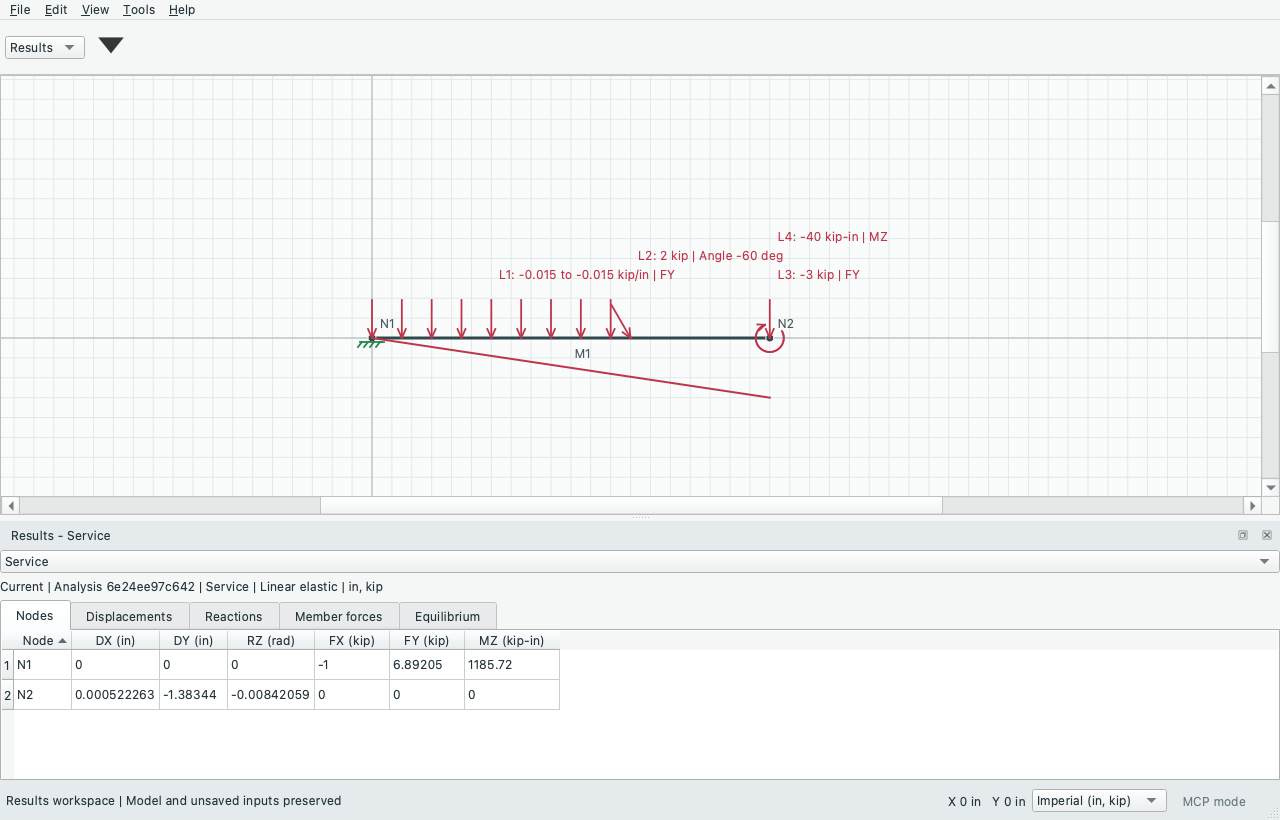
Use View > Restore Default Layout if a dock or toolbar has been hidden, floated or moved. It restores the Structure and Properties panels and the normal toolbar arrangement, selects All tools and shows the command rows; Results remains accessible when a result exists, and Model Findings when there are findings. It does not change the project, selection, undo history, result snapshot, display units or unapplied Properties values. Model-view zoom remains under your control; Fit (F) is separate. Layout recovery is a per-window presentation action, not an engineering edit.
View > Fit Selection (Shift+F) frames the currently selected nodes, members, load application points/loaded spans or whole surface recipes. It uses undeformed geometry with padding, preserves the current 3D viewing direction and does not edit the project or replace a result snapshot. For a single node, a useful local context remains visible. Fitting a selected hidden surface shows Surface Geometry; fitting selected spatial loads shows their load arrows. Fit (F) remains the whole-model command. Empty selections disable Fit Selection. Its shortcut also appears in the searchable Help reference.
Source: GUIDE.md. This manual follows the current repository; the published rc1 wheel has a smaller feature set.