Your First Model
Use a supplied example first. It gives you a known result to check before building your own structure.
File > Browse Examples lets you search the full catalog and inspect geometry, loading and expected checks before opening a model. Previewing keeps your current work intact; Open Example uses your current units and asks before replacing unsaved work. The direct categorized menus below remain available.
Open and Solve a Beam
- Launch Brecon and choose File > Examples > 2D Frames > Simply Supported Beam.
- Check the unit selector at the bottom-right. In the inch/kip preset, the beam spans 420 in and has a 10 kip downward midspan load.
- Inspect the two support nodes: one pin and one roller. They constrain the beam without fixing its end rotations.
- Press the Analyze triangle or F5. Wait for a completed result snapshot.
- Check vertical support reactions: 5 kip at each end. In SI (m, kN), the same physical example has a 10.668 m span, 44.4822 kN load and 22.2411 kN reactions.
- Turn on Deformed. Choose Auto, True Scale or Custom; amplification changes only the displayed shape, not the numerical answer.
- Open Diagrams to inspect axial force, shear and bending moment, then use Member Detail to inspect a station. Read the sign conventions.
- Save under a new project filename. Examples start as unsaved models and do not overwrite an example file.
In Diagrams > Whole Structure, use Node/member IDs, End values and Sampled extrema to reduce labels independently. An extremum can be at an end; turn off both numerical controls to hide all ordinate labels. Supports and Loads remain separate controls. These settings do not change result tables.
Use the plot toolbar's Save icon to export PNG or SVG. The image includes a snapshot stamp and embedded analysis details while preserving the live view. See image export and reports.
Try the Official PyNite Beams
Under File > Examples > 2D Frames, choose one of the three Official PyNite beam entries. These use a 168-inch span and custom section properties from the upstream scripts, rather than the 420-inch starter beam above. Analyze with F5.
| Example | Combination | Vertical reaction at each end | Midspan dy |
|---|---|---|---|
| Beam with Point Loads | 1.2D+1.6L | 9.4 kip | -0.42692855 in |
| Beam with Uniform Load | Combo 1 | 1.4 kip | -0.03974069 in |
Select the named combination in Results. The support-node displacements are zero; open Diagrams > Member Detail for M1 and inspect distance 84 in to check midspan deflection. A negative dy is downward. The model is unchanged when you switch display units; use the inch/kip preset to compare these numbers directly.
For Beam with Factored Envelope, open Diagrams > Envelopes, select all three combinations and inspect the Members summary for M1. Local Mz runs from -222.17142857 kip-in (1.2D+1.6L) to +596.57142857 kip-in (1.2D+1.6S). These extrema occur in different load combinations. D and S act upward in the official script; the example preserves those executable load signs.
Read the example reference for the pinned upstream revision, material/support assumptions and differences from the original scripts. Each opens as a fresh editable project; save it under your own filename.
Try the Official Frame and Truss Examples
Three more Official PyNite entries use existing methods. Open the entry, analyze with F5, then choose the stated result combination:
| Menu category and example | Combination | Result to check |
|---|---|---|
| 2D Frames / Moment Frame with Lateral Load | 1.2D+1.0W | N2 DX = 0.48084117 in; N1 FY = -2.10031058 kip (uplift) |
| P-Delta / P-Delta Column | Combo 1 | N6 DX approximately 40.2722 in; N1 Mz approximately 5227.21 kip-in |
| Trusses / Space Truss with Nodal Load | Combo 1 | BC axial force = -32.65333 kN; BD = -45.23538 kN; BE = +112.05467 kN |
Use inch/kip display for the first two rows and SI (m, kN) for the truss. Negative truss axial force means tension; positive means compression. The truss has very high axial stiffness, so little displacement is expected. Its unused free-joint rotations are n/a, not zero-valued rotational results.
The first two examples already select P-Delta elastic. Their second-order force recovery can trigger the strict Equilibrium check; compare the documented method limits and the source/adaptation notes before interpreting results. The column approaches a 40.2740-inch analytical tip displacement when refined. All materials remain elastic. The truss uses the existing linear, bilateral axial-only method.
Try an Internal Hinge or Three-Hinged Arch
In File > Browse Examples, search Gerber or polygonal arch. Review the
reference checks, then open the example and analyze with F5. Both use the
Service combination and Linear elastic analysis.
| Example | Reaction check in inch/kip display |
|---|---|
| Gerber Beam - Internal Hinge | N1 FY = 0.15 kip, N2 FY = 2.25 kip, N4 FY = 0.6 kip |
| Three-Hinged Polygonal Arch | N1/N5 FY = 7.5 kip each; FX = +6.25 / -6.25 kip |
Select the two members meeting at the internal/crown hinge and inspect their member-end moments: both are zero there. The hinge shares its translations but has no single rotation; its unused nodal RZ appears as n/a. The arch uses four straight frame segments. These released-frame examples cannot yet be converted with Create 3D Copy. See the example reference for dimensions and the supporting hand-equilibrium checks.
Make One Change
Select the load in the structure tree and edit its signed magnitude, then Apply. The previous editor results become outdated because the engineering model changed. Analyze again, or use opt-in live recalculation. Undo restores model definitions; it does not certify an earlier result as current.
Changing display units is different: it preserves the physical model and valid results. Learn the four unit presets before entering data.
Try a Spatial Model
Open File > Examples > 3D Frames > 3D Space Frame - Gravity and Wind. Orbit the viewport, use the signed-axis gizmo, and inspect the load cases and combinations. The 3D workflow explains work planes, XYZ nodes, member roll, six-direction supports, spatial loads and result components.
After analysis, choose a Result component in the 3D viewport. Use Node/member IDs, End values and Sampled extrema to reduce labels; the combination/unit/local-axis legend stays visible. Supports and Loads have separate controls. Print Results offers corresponding label checkboxes for its orthographic projections, without changing the viewport or result tables.
To add a rectangular surface in a source checkout, open Tools > Surface Meshing. The rectangle defaults to the highest detected complete frame level. Check the reference frame in the preview and choose Apply to 3D Model.
To try combined slab/frame analysis, open File > Examples > Slabs > 3D Frame and Slab - Coupled Pressure (Experimental). Analyze the Gravity combination: each base's vertical reaction should be 10.8 kip, balancing 43.2 kip slab pressure. Enable Deformed to see the slab and beams together.
Coupling must be explicit and conforming
On your own model, select the rectangular Quad surface, enable Coupled analysis (experimental) and apply pressure by load case. Merely touching does not establish a connection: shared mesh vertices and valid beam/grid alignment are required. Other surface families remain geometry-only. See coupled slab limits before using this workflow.
For multiple storeys, create a complete frame perimeter at each floor elevation and explicitly choose the matching placement level for each slab. New rectangles default to the highest valid level. Box selection can include several projected slabs; use the Surfaces tree for an exact floor selection when they overlap. Frame/surface/pressure changes can also be submitted as one guarded MCP batch; coupled interfaces validate before committing.
Try Three Floors and Slabs
Open File > Examples > Slabs > Three-Storey Frame and Slabs (Experimental). This model already enables coupled linear analysis. Analyze Gravity and check 45.9 kip vertical reaction at each of the four bases, balancing 183.6 kip total slab pressure. Factored gives 60.48 kip per base. Automatic self-weight is off; the prescribed Dead/Live pressures are the applied loads.
Select Floor1, Floor2 or Floor3 in the Surfaces tree to inspect its pressure map and placement. Turn on Deformed to see all three slabs and their supporting frames. Keep the method Linear elastic: coupled slabs are outside the P-Delta workflow. The example uses elastic concrete slabs and steel frame members.
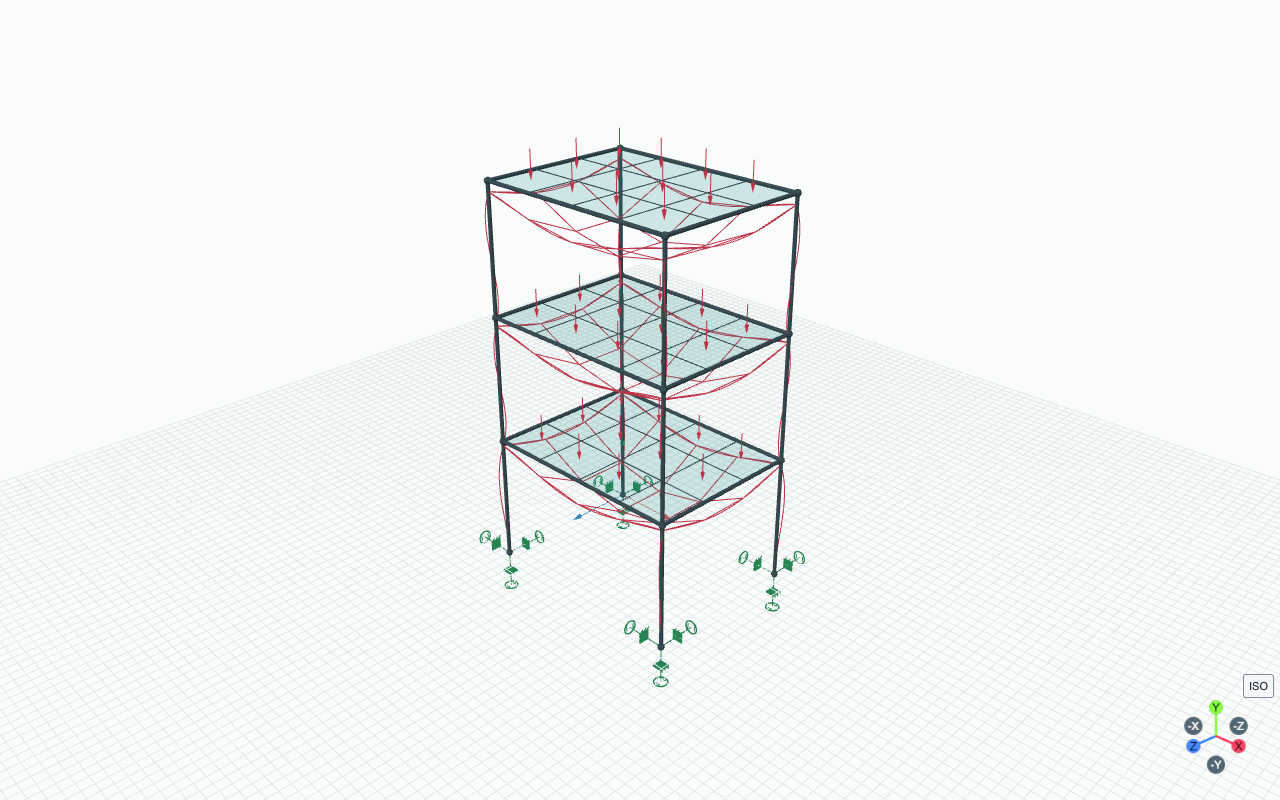
The actual 3D viewport after a Gravity analysis, with labels hidden for clarity. The red overlay exaggerates slab and frame displacement; use the result tables for numerical values. All three floors transfer their prescribed pressures to the supporting frame.
Choose a Frame Analysis Method
Open File > Examples > P-Delta > Slender Column - Gravity and Lateral Load for a ready-to-run second-order example. Analyze its default Combined result: tip DX is approximately 3.9919 in. Switch to Lateral for 2.4925 in. The larger combined displacement comes from the compressive Gravity load. Changing the method to Linear elastic makes Combined give 2.4925 in as well. The strict equilibrium tab can flag small force residuals from PyNite's approximate second-order recovery; see the method limits.
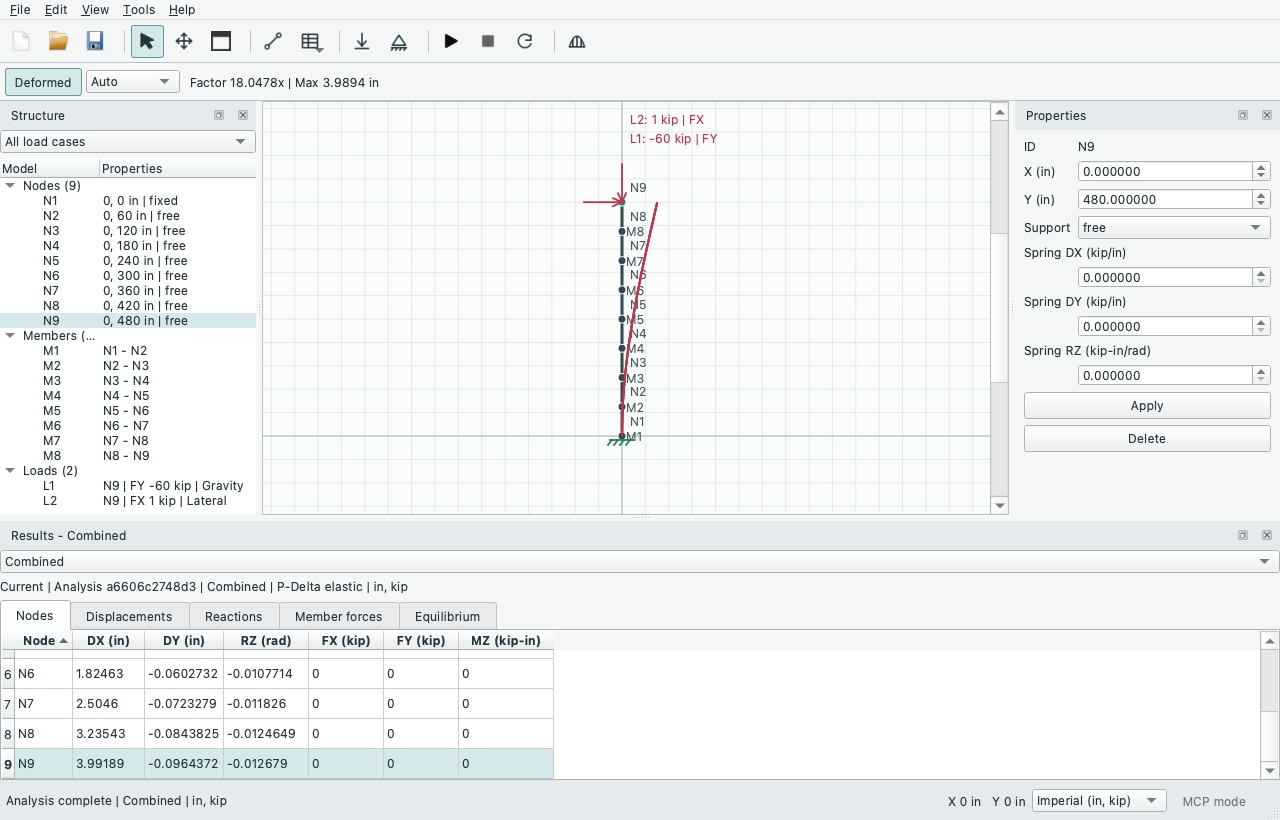
Open the image for full-size text. Select N9 to see the Combined tip DX of about 3.9919 in in the Nodes table. The red deformed shape is visually amplified. Its sampled maximum label can differ slightly from the nodal tip value; compare table values when checking the example.
Use Edit > Analysis Method to switch a frame-only project from Linear elastic to P-Delta elastic, then analyze again. The result label records the method. P-Delta solves each load combination independently; compare lateral response under combined gravity/wind with wind alone. Add intermediate joints along slender columns and check refinement. Keep coupled slab examples on Linear elastic. P-Delta keeps materials elastic. Steel plastic pushover and reinforced-concrete plastic behaviour are separate pending workflows; read the analysis scope before using a method.
Build Your Own
Select an item and press Shift+F to frame it; F fits the whole model. Double-click a recognized Model Findings row to select and zoom to the problem.
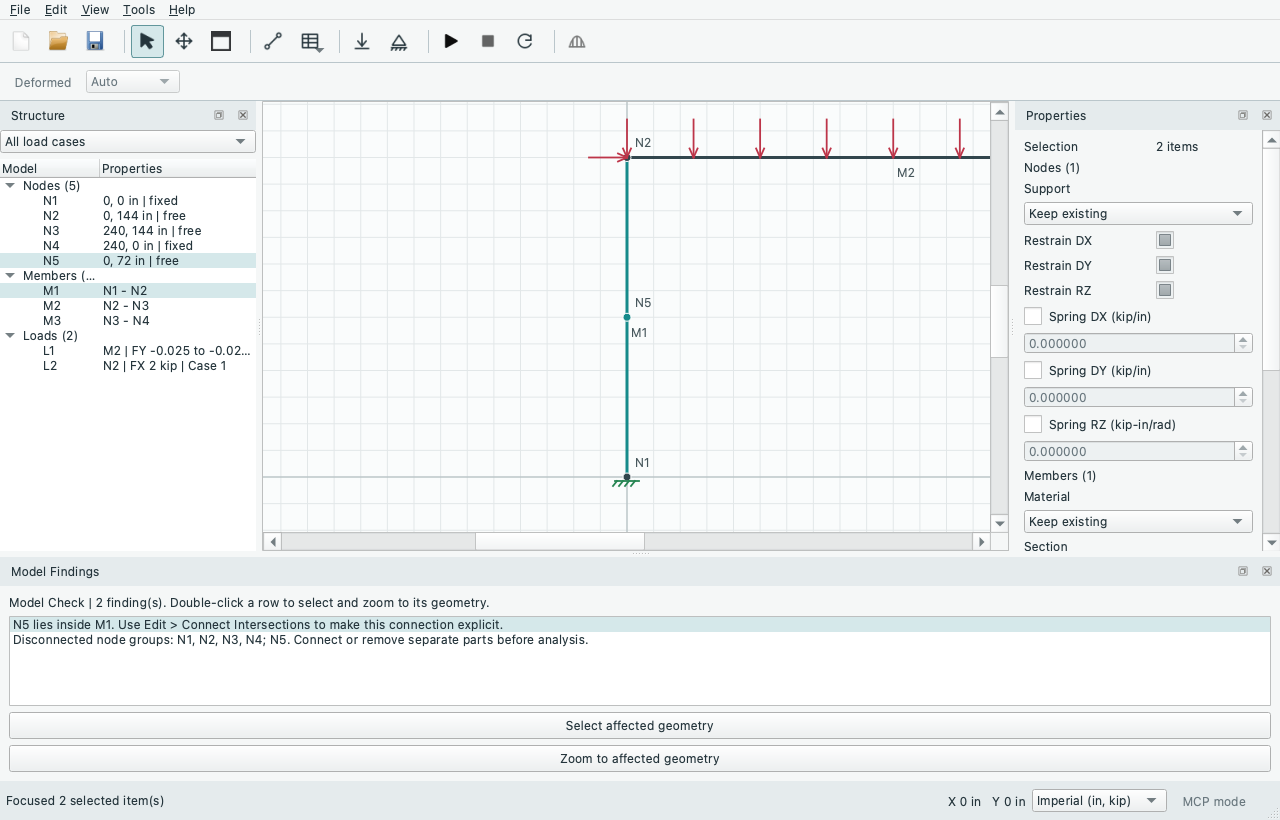
Here an extra node lies inside a column without a shared member connection. The finding explains the repair; double-clicking it brings the affected geometry into view. Follow the model-check example to reproduce it.
Press F1 for the documentation website, or use Help > Keyboard Shortcuts for an offline command reference. View > Restore Default Layout brings back misplaced panels without changing your model or unapplied property edits. See Help and workspace.
Continue with drawing and selection, materials and sections, supports, and loads. Use model checks before analysis; a crossing on screen is not automatically a shared joint.